A Better Teleprompter Workflow Built for School News
School news crews often patch together tools never meant for prompting. EasyPrompter brings scripts, live edits, and existing school displays together.
The morning-announcements script says the football team will play at home tonight at 7 p.m. Five minutes before the broadcast, the coach reports that rain has moved the game to Saturday afternoon. The anchors are already in their seats, the script is loaded, and the student operator has to fix the copy on every screen without derailing rehearsal.
Every school broadcast teacher knows some version of that five-minute scramble. A name is misspelled. A club meeting moves to a new room. An administrator walks in with one last announcement. The edit itself takes five seconds, but the workflow around it rarely does. A student changes the master document, copies the text into another program, reloads the prompter, re-checks the mirrored monitor, and hopes every screen still matches when the camera tally light turns red.
School media programs do not need more technology for its own sake. They need fewer steps between writing a show and putting it on the air.
Why Crews Ditch Bundled Software for Docs and Slides
In feedback gathered from school media educators, one teacher admitted that the software bundled with their studio hardware was so overcomplicated the crew simply stopped using it. Instead, they switched to a shared Google Doc because any student could open it from any computer and fix a line during a broadcast.
I have seen the same instinct in my own district, where several schools, including my children’s school, run their morning show off Google Slides and have a student tap the arrow key after every sentence. It is easy to see why. Docs and Slides are already on every school computer, IT does not have to install anything, and a new student can figure them out in two minutes.
General-purpose writing and slide tools get a school broadcast off the ground, but crews eventually hit a wall. Advancing slides by hand breaks an anchor’s natural reading rhythm, and as a program grows from a simple morning read into a daily production, those small workarounds start breaking down across the entire broadcast hour.
Where Patchwork Studio Workflows Break Down
It usually starts at the handoff between writing and prompting. The moment a student copies a script out of a writing app and pastes it into a separate prompter, the room has two versions of the truth. When an anchor trips over an awkward phrasing during run-through, or a schedule change arrives right before the bell, someone either has to stop rehearsal to re-import the script or fix it on one screen and leave the original document out of date.
That confusion compounds when students rotate positions every few days. In a school studio, Monday’s anchor is often Wednesday’s operator and Friday’s producer. When everyone shares one studio login or an open document folder, someone inevitably deletes a paragraph while trying to scroll or edits the wrong file. Multiply that across nearly two hundred morning shows a year, and a shared drive becomes a maze of similar filenames where a rushed operator before first bell can easily pull up yesterday’s announcements.
The physical room creates its own bottleneck whenever a setup assumes every rehearsal and broadcast happens inside one wired studio. A school media-program leader once told me how hard it was to get an assistant principal into the studio just to rehearse a morning announcement. Administrators are busy between bells, and walking down to the studio for a three-minute practice run rarely makes their schedule. Meanwhile, whenever a crew wants to add a second camera angle or take a broadcast to the gym or auditorium, pulling long video cables across the floor creates trip hazards and locks the setup in place.
Even when everyone is in the room and ready to roll, the operator and the presenter are often fighting the screen itself. Another educator said their crew used a free web prompter on a student Chromebook, which meant the student operator had to read the entire script backward while scrolling. A beam-splitter needs horizontally mirrored text so the reflection reads properly to the anchor looking into the lens, but forcing a student operator to track cues backward turns a straightforward crew job into an obstacle. And even when a setup supports two screens, a student anchor sitting three feet from the camera needs a very different font size and line width than a principal reading from a podium across the room, and changing the font size on one screen usually changes where every line wraps so the two displays drift out of sync.
How We Built EasyPrompter to Solve Those Bottlenecks
I understand those headaches firsthand because the same kind of friction led me to create EasyPrompter in the first place. I was directing a local commercial shoot where the on-camera talent could not remember their lines, and every teleprompter program I tried was so clunky and overengineered that it slowed the entire set down. I wrote the first version for my own shoots just so my crew could roll without fighting the software, and we have designed the platform ever since around removing those exact bottlenecks for broadcast studios, enterprise teams, and school programs.
Instead of treating writing, organization, and prompting as separate tools, we put them into a single browser-based workflow:
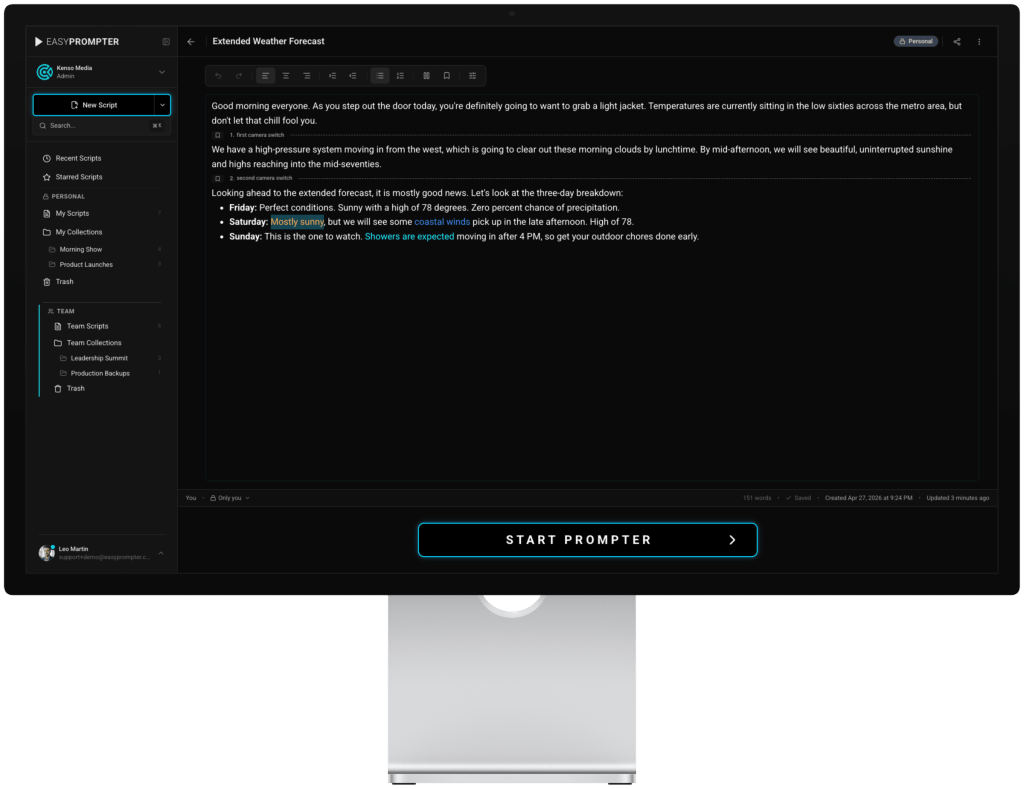
One live script from draft to air: Because the script editor and the prompter are part of the same workspace, there is nothing to copy, export, or reload. With Live Edit, if a sentence needs to be simplified during rehearsal or updated seconds before airtime, the operator edits the active script in place and the anchor’s screen updates while they keep reading.
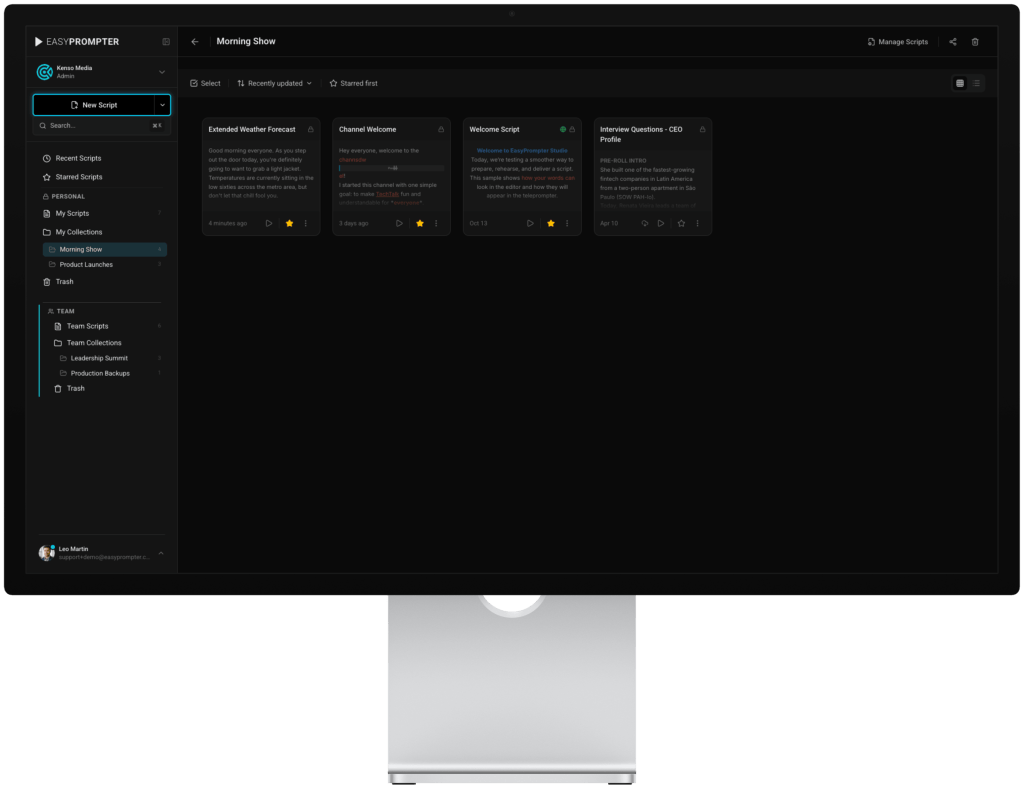
Role-based crew access and show collections: Teachers can assign student roles such as Producer, Editor, or Talent without sharing a single classroom password. Producers and editors build the rundown, the operator drives the session, and talent can review their lines without accidentally altering the copy. Collections, pinning, and search keep a full school year of daily announcements and sports broadcasts organized so the operator always opens today’s show.
Account-free rehearsal links and wireless browser displays: To solve the busy-administrator problem, we built read-only script sharing links that let an assistant principal or guest speaker rehearse at their own desk without creating an account or joining the workspace. For live prompting, Remote Casting lets the operator connect any school iPad, Chromebook, or laptop as a synced prompter display using a link or QR code, with no viewer app for IT to install and no student login required. Prepared scripts can also be prompted locally if the network drops on location. As one user told us, “I finally have a use for that iPad I had sitting on the shelf.”
Independent operator and talent views powered by PaceMirror: Our Operator Mode gives the presenter mirrored text while the student operator reads normal, unflipped text. To keep different screens together, we built our patent-pending PaceMirror synchronization engine, which tracks the exact passage being spoken so every display stays locked on the same part of the script even when the operator and presenters use completely different font sizes, line spacing, margins, or screen shapes. Crews can also save those preferences as Speaker Profiles, making it effortless to switch between a student anchor and a guest speaker.
Choose Tools That Remove Steps
Go back to that rain-delayed football game five minutes before the morning show. In EasyPrompter, the student operator types the new Saturday game time directly into the active script. Every connected display updates in place. Nobody exports a file, nobody re-mirrors a monitor, and the anchors never lose their place in rehearsal.
That is a practical test for any workflow in a school studio, whether you are refining how your crew uses existing tools or making the case to your principal and IT team for a dedicated platform. Does it work on the Chromebooks and iPads the school already owns without desktop software for IT to maintain? Can a student learn the role in a single class period? And when a last-minute change walks through the studio door, does your setup add three more steps, or get out of the way so the students can put on the show?
Teachers who recognize these bottlenecks can visit easyprompter.com to explore the workflow, identify which existing devices they would use, and ask their principal, CTE director, or IT team to evaluate EasyPrompter for their school or district.